SignalScope
See the signal across your whole WISP network at a glance.
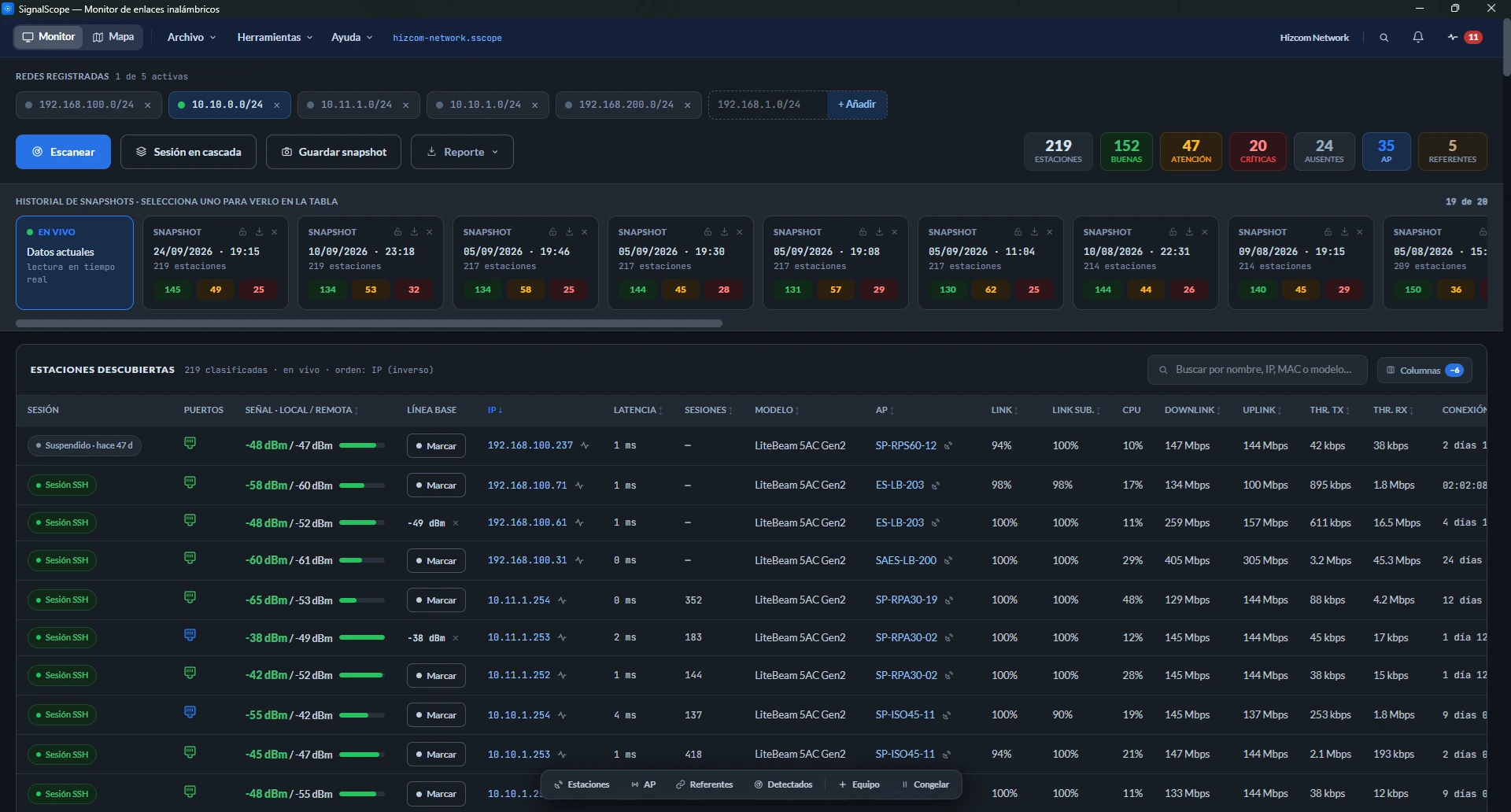
SignalScope is a desktop application for wireless internet service providers (WISPs). Scan your network and start checking signal and diagnostics in real time.
Manage your Ubiquiti airMAX or MikroTik RouterOS radios and spot devices quickly with shortcuts and advanced search.
It is strictly read-only: it never changes your radios' configuration.
How it helps
SignalScope puts the whole network on one screen and watches it for you:
- The traffic light and the sentinel point at the link that is degrading, even while nobody feels it yet.
- It points at where the problem starts. The diagnosis explains whether it is signal, noise, or AP or frequency saturation, or not a radio problem at all.
- It helps you improve the network as well as repair it: record a baseline per antenna to compare against the current state and check whether anything changed for the worse.
- It keeps watching after you close the window. With a project open, the app stays in the system tray and goes on measuring and alerting.
Who it is for
For the field technician or the network lead at a WISP: someone who needs to monitor constantly, stay alert to network anomalies, and quickly identify and verify a problem when it is reported.
You do not need to be an RF specialist. The app translates the radio's raw metrics into a state that is clear and easy to read.
What it does
| 🛰️ Discovers your network | Scans the CIDR ranges you register and finds devices through ping and the ARP table. No drivers, no extra installs. |
| 🔑 Logs into each radio | Over HTTP or SSH, one by one or in a cascade (all at once). You pick the device's System (airOS or RouterOS) and the device reports its own mode, so it is classified automatically as a Station or an Access point. |
| 📡 Monitors live | Continuous refresh of signal, noise, SNR, link quality, throughput, distance and uptime. |
| 🚦 Traffic light per link | Green, amber or red by dBm thresholds, or relative to the baseline you set for that antenna. |
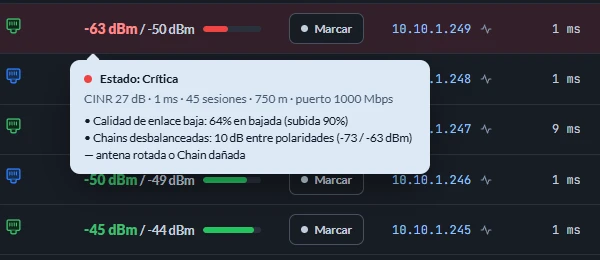
| 🧠 Diagnoses | Explains each link's state in plain language and points at where to look. |
| 🛎️ Service sentinel | Warns about faults the signal does not reveal: a loose LAN cable, half duplex, a port down to 10 Mbps, a misaligned antenna, a saturated radio, a slow link. |
| 🔕 Mutes what you already know about | A device with a known fault stops alerting for a set period, and it keeps being measured. |
| 🔔 Tells you when something comes back | Mark a device that went down and the app notifies you the moment it answers, once or every time. |
| 📱 Phone notices | The sentinel's alerts can reach you on WhatsApp or Telegram. You choose which events and with what urgency. |
| 🧾 Watches what you don't manage | A switch, an ONU, the router, and also a public IP or a domain outside your network. They live in References with their own name and a watch that measures their latency and packet loss. |
| 📸 Keeps history | Snapshots of the network state at a fixed point in time. |
| 📄 Exports | PDF, Excel and CSV reports for the customer or for your own records. |
| 🗺️ Coverage map | Your devices and their state on a map, with terrain relief and three ways of drawing coverage. |
| 🏅 Scores the network | A grade for the whole fleet, downloadable as an image. |
| 🤝 Shares without exposing | A Snapshot can strip sensitive names and IPs, and the other operator opens it in viewer mode. |
What it does not do
The limits matter as much as the features:
- It does not configure radios. SignalScope never sends a write command to a device, so accidents cannot happen.
- It does not send your data to any server. Your network's information lives only on your computer, in an encrypted file.
- It does not replace the radio's own interface for configuration work. It is an observation and diagnosis layer on top of it.
- It does not watch with the app fully closed. Closing the window leaves it watching from the system tray. To quit, go to File → Quit SignalScope, or use its tray icon menu.
How your devices are organized
The app works with four tables. It helps to understand the difference between them from day one:
| Table | What it holds | Permanence |
|---|---|---|
| Detected | Queues the scan results so you can identify each device and register it in its table. | Temporary: it empties as you resolve each device, and disappears from view once no rows are left. |
| Stations | Customer radios (CPE), with their signal, traffic light and diagnosis. | Permanent |
| Access points | Your base antennas, with connected clients, channel, frequency and load. | Permanent |
| References | What you do not manage but look at for contrast: the node's router, an ONU, a switch, and also targets outside your network, such as your provider or a web domain. | Permanent |
A device leaves Detected in one of two ways. One is logging into it: the radio itself declares whether it is a station or an AP and is classified automatically. The other is "Move to References…", which puts it in the inventory with its name and its watch already set. That decision is stored in the project, so a later scan will not ask you about it again.
The app suggests, you decide
Detected includes a Suggestion column hinting at what each device looks like based on its manufacturer ("Ubiquiti radio", "MikroTik radio"). It is a hint and decides nothing on its own. Discarding a device is always your call, because a radio from a new brand or an unknown manufacturer could otherwise drop out of monitoring without you noticing.
How it works, broadly
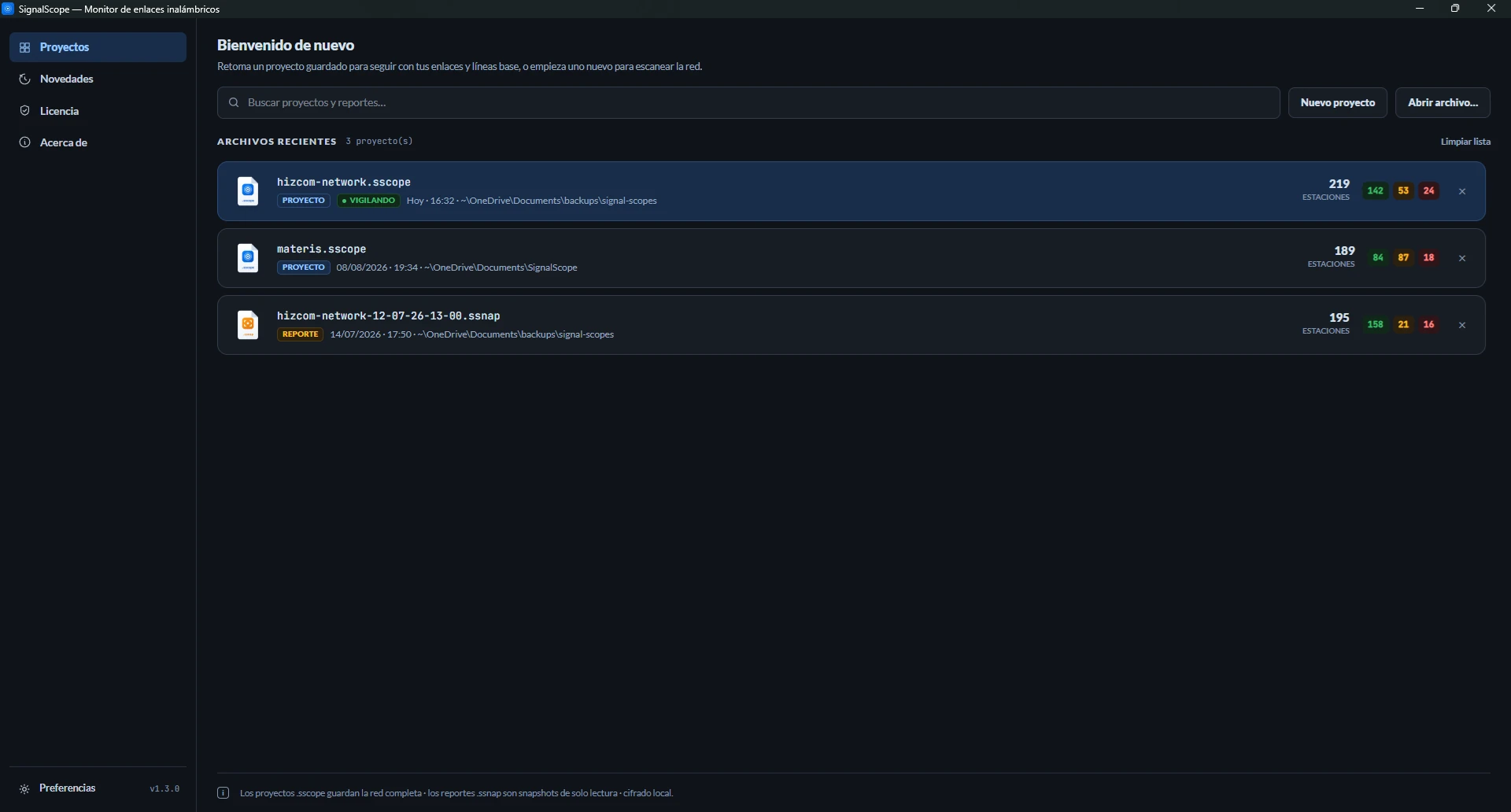
- Activate your license with your email and key, or choose the 30-day trial.
- Create a project: a
.sscopefile holding your whole network (devices, encrypted credentials, baselines, history). Everything autosaves. - Scan the networks you registered. Whatever is found lands in Detected.
- Work through that list. Log into the radios, picking their system, and they classify themselves as Stations or Access points. Send whatever you will not manage to References, or remove it.
- Monitor. From then on the table refreshes on its own, and the traffic light, the diagnosis and the sentinel work on that data.
- Record and share with Snapshots, reports and the project file itself.
Requirements
- Windows 10 or 11 (64-bit).
- Network access to the radios from the computer running the app. A wired connection is recommended. On a laptop over WiFi the app works, but everything it measures travels through that connection, and if the laptop's WiFi falters, its drops get mistaken for problems in the network you are monitoring.
- Radio credentials: an airOS or RouterOS username and password, depending on the device.
- Internet connection: the app is not designed to work offline yet.
Getting started
SignalScope is available on the Microsoft Store. If it is your first time, the trial gives you full access for 30 days, with no sign-up.
Questions and licensing: support@materis.io