Installation and activation
SignalScope runs on Windows 10 or 11 (64-bit). It requires no administrator rights and needs no drivers or additional software. Your data lives in your user profile and is kept when you update or reinstall the app.
Install
SignalScope is distributed through the Microsoft Store:
Get SignalScope on the Microsoft Store
When a new version is out, the app itself tells you (see Updates).
First launch
When you open SignalScope you first see the loading screen and, right after, the license screen.
App data (recent projects, preferences, cache) is stored in %APPDATA%\SignalScope.
The license screen
SignalScope requires a license to run. The screen offers two paths, and both give full access to every feature:
| Trial | Full license | |
|---|---|---|
| Duration | 30 days | Annual |
| Needs internet | No | Only to activate and revalidate |
| Needs an email | No | Yes (the license holder's) |
| Devices | The machine it was installed on | Up to your license's device quota |
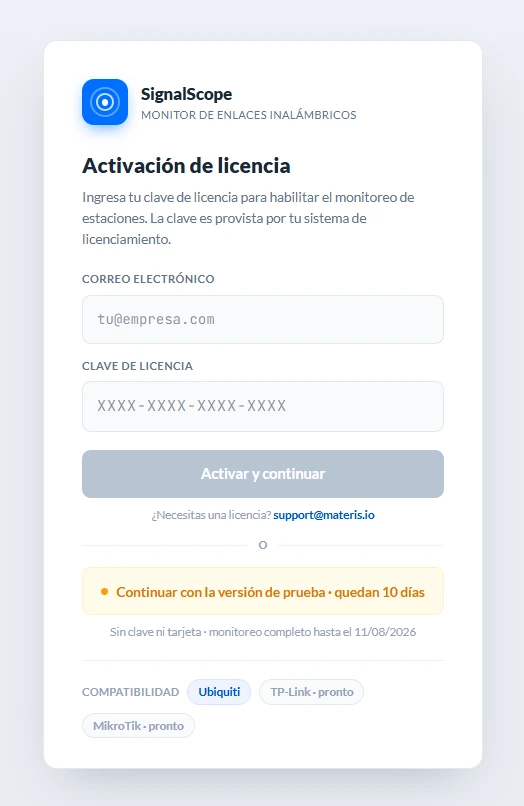
Trial (30 days)
Click "Continue with the trial" and you are in with full access, no email and no connection.
The countdown starts on the first launch after installing.
Get a license
Get your license from the official website, sscope.materis.io.
Renewing
The license is annual, and the app warns you ahead of the expiration and asks whether you want to renew. You can also renew from your Panel.
Moving to another machine
The license takes one slot per machine. To move:
- On the old machine, open the License view and click "Release this machine's license". That frees the slot and takes you back to the activation screen.
- On the new machine, activate with the same email and key.
Release before formatting or uninstalling
Uninstalling the app does not free the slot. If the machine is gone (formatted, dead disk) and the slot is still taken, write to support@materis.io to release it.
Updates
The license covers future updates. Your projects and preferences are protected, and projects from earlier versions stay compatible.
Startup, tray and closing
Three behaviors worth knowing from day one.
Diagnostics in the background
- The first time, the "SignalScope in the background" notice appears. It explains where the app went and how to close it for real.
- To close SignalScope completely, use File → Quit SignalScope or right-click its tray icon and choose "Quit SignalScope".
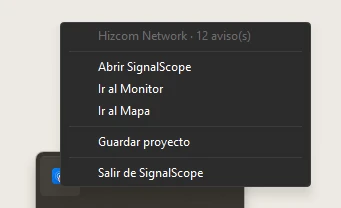
- Left-clicking the tray icon shows or hides the window. Right-clicking opens its menu, whose first line says which project is open and its state (for example, how many devices it is watching or how many alerts it has). The icon carries a red dot while there are pending alerts; alerts from muted devices do not count. From the menu you can "Open SignalScope", go to the Monitor or the Map ("Go to Monitor", "Go to Map"), "Save project" or quit.
- If you click a Windows notification, the app opens on the device that caused it. Notifications are turned on in Preferences → Alerts, with the "Windows notifications" switch.
What if I want to stop watching without closing the app?
Use File → Close project: it stops watching and returns to the Welcome screen.
Start with Windows
Preferences → General → Startup has the "Start with Windows" switch: "Adds SignalScope to the Windows startup apps, and it starts with the last project you left open." When you turn the PC on, the app opens by itself and lands you straight in the Monitor of that project.
Windows can block startup
If you turned startup off from Task Manager or from Settings → Apps → Startup, the app can no longer turn it back on.